
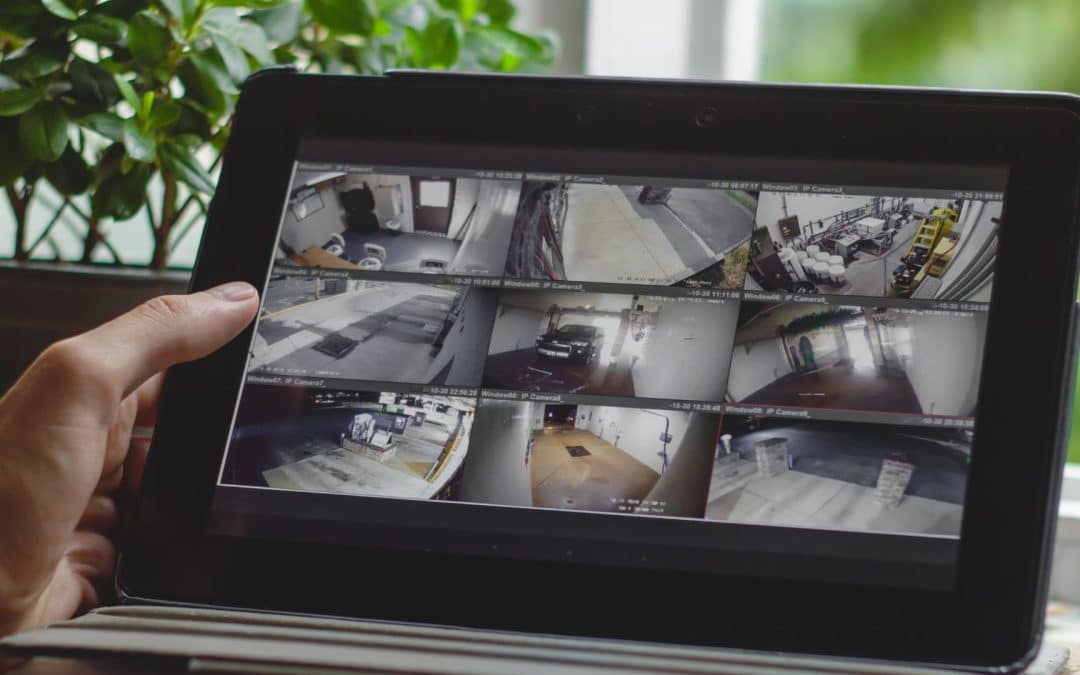
Summary: Retaining security camera footage starts with understanding how long your Colorado Springs business actually takes to spot and report an issue. Weigh common options like 30, 60, or 90 days against your day-to-day operations, double-check any legal or insurance rules, and verify what your system is truly storing. Keep in mind: those timelines are smart guidelines, not set-in-stone rules. Always export critical incident clips separately, test playback regularly, and assign a team member to make sure your actual storage matches your official policy.
Retaining Security Camera Footage: Build Your Storage Window Around Real Operations
A missing delivery might only surface during an end-of-month inventory count, while a customer issue might take several shifts to reach management. For a business here in Colorado Springs, the ideal retention window should give you plenty of breathing room to catch a problem, report it, and pull the right video. Retaining security camera footage just because a timeframe sounds convenient isn’t nearly as helpful as tailoring it to how your business actually runs every day.
Start by asking: how far back do your managers realistically need to look when something pops up? A busy retail shop reviewing sales daily operates on a completely different rhythm than an El Paso County warehouse counting stock once a month. Don’t forget to factor in weekends, manager vacations, and the time it takes for your designated team member to export the file.
Use that operational timeline as your baseline, then cross-check any legal, licensing, insurance, or contract requirements that apply to your industry. Be sure to confirm those details with your insurer or legal team before locking in a policy. Ultimately, retaining security camera footage should be a deliberate business choice—not just whatever your system happened to default to on installation day.
You Might Like: Security Camera Integration With Access Control in El Paso County
Comparing 30, 60, and 90 Days
For local businesses in Colorado Springs, retaining security camera footage comes down to a simple balance: how long does it take to spot a problem versus how quickly can you retrieve the recording? Standard windows like 30, 60, and 90 days are great starting points for planning, though no single option fits everyone. Let’s break down how each option stacks up against your review habits, mandatory requirements, and available hard drive space.
30 days: A 30-day window works wonderfully if you review transactions, deliveries, and customer feedback on a tight daily or weekly schedule. However, if you rely on monthly inventory checks, 30 days leaves very little room for error if an issue happened early in the cycle. Always ask yourself whether weekend gaps, staff time off, or delayed reports might push a request past that 30-day mark.
60 days: Stepping up to 60 days gives you extra breathing room when discrepancies take longer to spot or require coordination across multiple managers. For instance, an El Paso County warehouse might lean toward 60 days if shipping disputes tend to bubble up several weeks after delivery. Just be sure your system can maintain clear recording quality across that entire two-month span!
90 days: A 90-day window is worth exploring if you have specific regulatory mandates or complex operational needs requiring a longer history. Retaining security camera footage for three full months calls for plenty of solid storage capacity and clear, enforceable rules for access and deletion. No matter which timeframe you choose, remember to archive key incident footage separately and regularly double-check that your cameras are actually saving what you expect.

What Determines How Much Video Your System Keeps?
Raw hard drive capacity is only part of the puzzle. The actual volume of video your system creates depends heavily on your camera settings and scene activity. A solid plan for retaining security camera footage needs to account for these variables before promising a specific number of days.
Here are the core factors to review when calculating storage. Make sure to check your actual live configuration instead of relying on a box label or an old estimate. If your cameras use different settings across your facility, evaluate each one on its own merits:
- Camera count: Additional recorded streams increase total storage demand.
- Bitrate: The amount of data recorded per second directly affects storage use.
- Image settings: Resolution, frame rate, and compression influence data use and usable detail.
- Recording schedule: Continuous, scheduled, and event-triggered recording produce different workloads.
- Available capacity: Usable recording space may differ from the drives’ advertised total.
As Axis highlights, heavy scene activity can quickly cause variable bitrate storage demand to spike, while over-constraining your bitrate can leave you with blurry, unusable footage. Dropping image quality just to stretch out the calendar can defeat the whole purpose of retaining security camera footage! Always review real video samples before committing to a quality trade-off.
Read Also: How to Choose the Best CCTV Camera Installation Company
A Storage Example You Can Discuss With An Installer
Let’s look at a quick example you can run by your tech installer. Imagine an 8-camera setup where each camera averages 2 Mbps and records continuously around the clock. Together, they generate roughly 172.8 GB per day—adding up to about 5.18 TB over 30 days. Scaled up at that same rate, 60 days will need around 10.37 TB, while 90 days reaches about 15.55 TB.
Keep in mind that these numbers cover video data alone—they don’t include audio, system overhead, RAID redundancy, or safety margins. Because real-world bitrates fluctuate with motion and scene changes, treat this as a helpful benchmark rather than a strict guarantee. Reliably retaining security camera footage means checking actual drive capacity against real-world storage demand.
Before jumping into a full hardware overhaul, ask your installer if your current setup can handle your target timeframe. A simple storage expansion or configuration tweak might do the trick, though some older recorders may hit a hard limit. Evaluating your existing gear by its actual capability and health can save you from replacing perfectly good hardware unnecessarily!
Decide Whether Motion Recording Fits The Job
Continuous 24/7 recording provides an uninterrupted, full timeline of your operations. On the flip side, motion-triggered recording can dramatically stretch your storage, though success depends heavily on camera placement, sensitivity, and proper setup. For retaining security camera footage around a busy loading dock, ask yourself whether you need the entire sequence leading up to and following a delivery.
It pays to test your setup: observe how it records a normal arrival, a vehicle creeping in slowly, or movement at the far edges of the frame. Ensure the clip captures enough lead-up and follow-through time to tell the complete story of what happened.
What works great for a quiet indoor hallway might fail miserably for a busy main entrance. Take time to evaluate each camera’s main purpose and any compliance needs before adjusting its schedule. At the end of the day, the goal of retaining security camera footage is to capture clear, meaningful context—not just collect the maximum number of days on a drive.

Preserve Incident Video Outside The Routine Cycle
Everyday rolling storage and incident preservation are two very different beasts. While your system normally overwrites old footage automatically, specific events—like a slip-and-fall, property damage, or a theft claim—require clips to be locked down immediately. Retaining security camera footage after a reported incident therefore needs a dedicated response procedure outside the standard deletion cycle.
Federal Rule of Civil Procedure 37(e) addresses the loss of electronically stored information that should have been kept for potential or ongoing litigation. Simply relying on your system’s automatic deletion schedule won’t shield you if footage should have been saved. Always consult with legal counsel to define clear guidelines for when and how long incident video must be preserved.
Make sure your team follows these key steps whenever an incident occurs. Have a trained team member verify that the export works smoothly and that the original video is safely locked. Always document each action so another manager can easily track what was saved and where it belongs:
- Identify the scope: Record the location, time range, cameras, and reported concern.
- Keep context: Preserve relevant activity before and after the event, not only a short excerpt.
- Protect the original: Retain the original export and any required playback software; make separate working copies.
- Control handling: Record who exported, accessed, or received the files, and store them securely.
- Authorize release: Follow counsel’s instructions and your policy before deleting preserved material.
Read More: Security Camera System for Small Offices in Colorado Springs: What to Cover and What to Skip
Give Access And Deletion Clear Owners
Retaining security camera footage brings real responsibility for anyone with access to view, save, or share it. Appoint a clear policy lead alongside a trained backup person so footage can be retrieved without delay when someone is out of the office—and keep permissions strictly tailored to what each employee needs.
If your business operates across multiple sites in Colorado Springs or El Paso County, document exactly where recordings live and who holds authority to release video. Don’t forget exported files in your policy either—loose video clips saved on laptops or flash drives can stick around long after the recorder overwrites the original. Retaining security camera footage responsibly means defining clear rules for deleting temp files and establishing how legal holds take priority.
Remote viewing and cloud backups also deserve a second look. Just because you can pull up a live stream on your phone doesn’t mean your video is being backed up off-site! Take a moment to verify your backup locations, stored footage, user permissions, and any recurring service fees against your actual provider agreement.
Test Your Oldest Available Recording
A retention target in your settings menu is just a goal—not definitive proof that every camera has saved that much history. Retaining security camera footage effectively requires verifying actual playback, not just glancing at your recorder’s setup screen.
Set up a regular schedule to audit your video, especially after adding new cameras or tweaking recording rates. Focus your checks on high-priority areas during peak activity hours. A quick glance at a live feed won’t tell you if your system is actually holding onto historical footage when you need it most!
- Find the oldest footage: Check each important camera’s actual available history.
- Check completeness: Look for missing periods during hours that should have been recorded.
- Review useful detail: Confirm that recorded images answer the intended business question.
- Check timestamps: Verify local time and consistency with records used during incident review.
- Export and replay: Open a sample export on the intended playback device.
Match Your Storage Plan To Your Business
Retaining security camera footage works best when your reporting workflow, recording parameters, and hard drive space are all pulling in the same direction. System Links provides comprehensive security camera installation and service for local Colorado Springs businesses, and we’re happy to assess your current equipment to see how it can best support your goals. Request a site visit and quote to review your target retention timeline, audit your current recording history, and explore your best options!
FAQs About Retaining Security Camera Footage
Can different cameras have different retention periods?
Absolutely! Many modern recording platforms let you set retention rules on a per-camera basis. This comes in handy when you want to retain security camera footage from a high-traffic loading dock longer than a quiet back hallway. Just make sure to double-check system compatibility and any regulatory needs before setting up different schedules.
Does replacing a recorder automatically transfer older footage?
Not automatically! Never assume your existing recordings will carry over seamlessly to a new unit. Prior to upgrading or replacing gear, identify any essential clips that need long-term saving and export them using approved methods for retaining security camera footage. Keep proper player tools on hand and double-check file access before decommissioning the old system.
Is a phone recording of the playback screen enough?
It’s best to avoid relying on phone recordings of a monitor screen. Always use your system’s native export tool to capture the full resolution, original frame rate, and embedded metadata. Cell phone videos lose critical detail and won’t stand up well if official footage is required. Be sure to confirm the preferred file format with the requesting party and store the original export securely!
Related posts:
 Security Camera Installation for Restaurants in Colorado Springs: Protecting Cash, Staff, and Entrances
 Essential Outdoor Security Camera Features for Colorado Springs Businesses
 How to Maintain Security Cameras in Colorado Springs: Keep Your System Running Strong
 What You Need to Know About Colorado’s Video Surveillance Laws